MetaTrader 5 · Expert Advisor
Master Volume SniperUser Guide
A practical, plain-language guide to running the Master Volume Sniper Expert Advisor on MetaTrader 5. Built and tested on major instruments such as XAUUSD (Gold) and BTCUSD, on the M3 and M5 timeframes. In our own testing, M5 has been the most consistent timeframe to run it on.
🎯What it is
Master Volume Sniper is a volume-driven automated strategy — the autonomous twin of the Master Volume Profiler indicator. It continuously builds a picture of where price has spent its time and activity, and waits for moments when price breaks decisively out of that structure with the trend behind it. When its conditions line up, it opens a position, manages the stop, banks partial profit, and trails the remainder.
In one breath, the cycle is:
- Map the structure. Read the volume profile to find the busiest prices and the value-area edges.
- Check the regime. Confirm the broader trend so it isn't fighting a flat or hostile market.
- Wait for the break. Enter only when price pushes beyond structure by a meaningful distance and the filters agree.
- Manage the trade. Place a measured stop, bank a partial at the first target, move the stop toward break-even, then trail the rest to let a winner run.
The decision logic and its parameters are locked inside the EA — there are no edge-defining knobs to curve-fit or second-guess. You configure how it trades for you (risk, sessions, news, limits); the engine itself is tamper-proof.
What it is not: it is not a guaranteed-income system, not a "set and forget" money printer, and not a substitute for your own risk judgement. It is a rule-based tool that does exactly what its settings tell it to.
✅Before you start
- The defaults are a tested starting point, not a recommendation. Out of the box the EA runs the locked, XAUUSD-M5 configuration immediately. That is where our testing landed — not a claim about what will happen next on your broker or in the future.
- M5 has been our most consistent timeframe. It works on M3 too, and the logic generalizes to other liquid instruments, but M5 is where the behaviour has been steadiest. Treat anything outside the tested combinations as something you need to validate.
- It trades a real account. Always run it on a demo account first, long enough to see how it behaves through different market conditions, before considering live capital.
- Costs matter enormously. Spread, commission, and slippage come straight out of every trade. A broker with wide or unstable spreads on Gold or Bitcoin can turn a tested edge into a loss. Test on the account you actually intend to run.
⚙️Installing and attaching
- Copy
KK-MasterVP.ex5into your MetaTrader 5MQL5/Experts/folder (or a subfolder you keep EAs in). If you plan to use the live notifications or the Account Guardian (see Settings), also copy the smallTestDeployOps.ex5validator so you can confirm those work before deploying. - Restart MetaTrader 5, or right-click the Navigator → Expert Advisors list and choose Refresh.
- Open a chart for the instrument and timeframe you want — for the intended setup, XAUUSD, M5.
- Drag Master Volume Sniper from the Navigator onto the chart, or double-click it.
- In the settings window, Common tab, tick Allow Algo Trading. In the Inputs tab you can leave the defaults to start, or set your own parameters (especially your risk per trade) and click Save to store them in a
.setfile — see Make it yours below. - Make sure the global Algo Trading button in the MetaTrader toolbar is enabled. A small smiling face in the top-right of the chart means the EA is live.
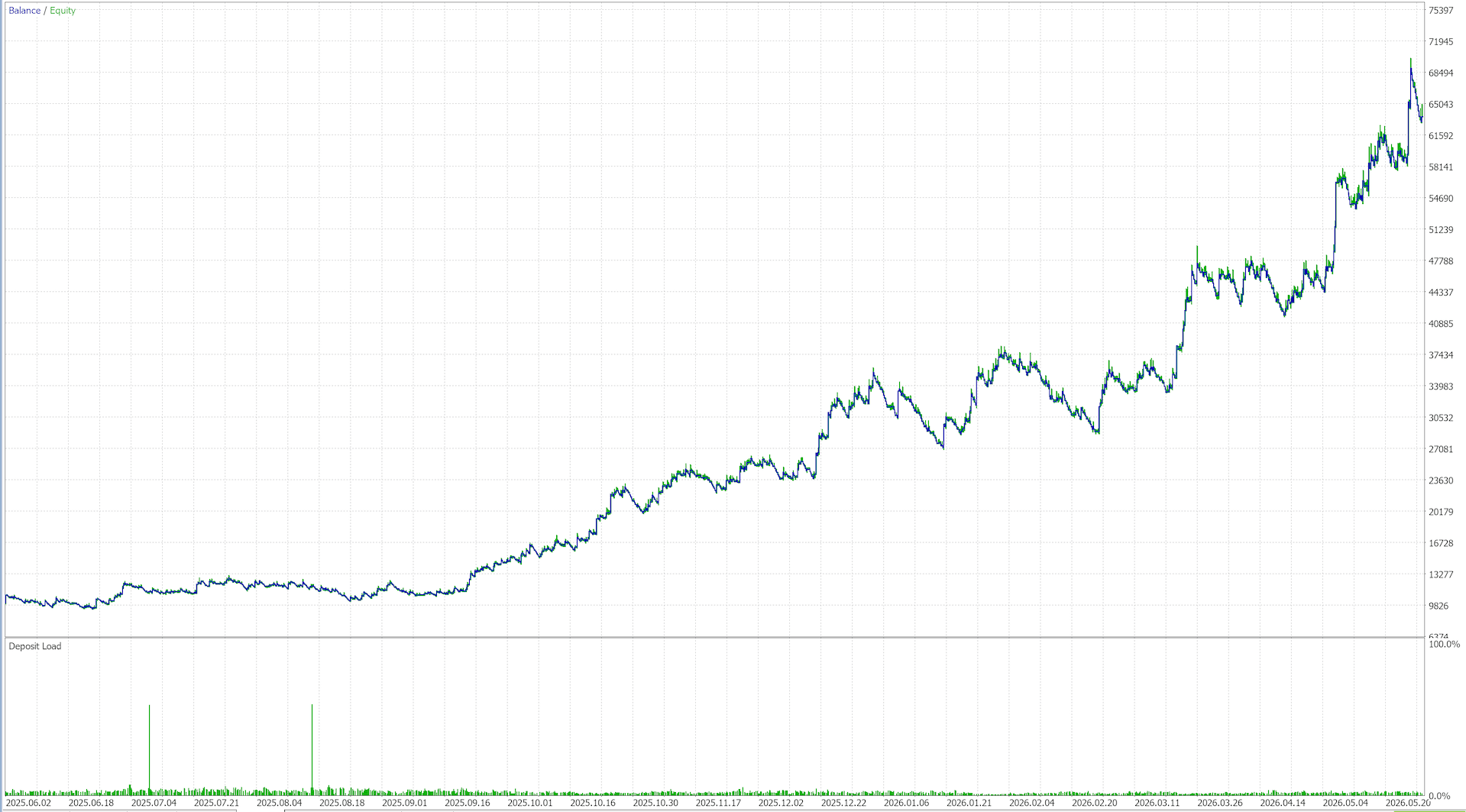
To test before going live, open View → Strategy Tester, pick the EA, the symbol, the timeframe, your date range, and Every tick based on real ticks for the most realistic modelling, then run it. Backtest results are historical and do not guarantee future performance.
💾Make it yours — saving a .set file
You can run Master Volume Sniper on its default parameters straight away — attach it and it works. But the defaults are only a generic starting point, not a fit for your account. It is strongly recommended that you configure your own parameters — above all your risk per trade — so they match your balance and the loss you are genuinely comfortable taking on a single trade. Once you have, save them to a .set file so you never have to type them again.
.set files as part of the software at the moment. The defaults are built into the EA; any .set file you use is one you create and save yourself, using the steps below.Save your settings to a .set file
- Open the EA settings — drag it onto the chart, or right-click the chart → Expert Advisors → Properties, or press F7.
- Go to the Inputs tab and adjust the values you care about — start with Risk % of account and the drawdown circuit breakers.
- Click Save (bottom-right of the Inputs tab), choose a folder you'll remember, give the file a clear name (e.g.
MySniper-XAUUSD-M5.set), and save. Your settings are now stored locally on your own computer.
Load it next time
- Open the EA settings → Inputs tab.
- Click Load, pick your
.setfile, and click OK. Your saved parameters are applied in one step — no retyping.
Move it to another computer
A .set file is just a small text file. Copy it to a USB stick, a cloud drive, or email it to yourself, then on the other machine open the EA's Inputs tab, click Load and pick it — your personal configuration travels with you, identical to the original.
Whatever you load, re-read the disclaimer and demo-test before trusting it with real funds.
📋Quick reference — example values
These are the inputs most people adjust, with their shipped default and a few example values to show what changing them does. The examples are illustrative — they explain what each setting means; they are not recommendations, and the defaults are simply where our XAUUSD M5 testing landed. The Settings section below explains the same controls in more depth, group by group.
Core trading & risk
| Setting | Default | Example values — what they mean |
|---|---|---|
| Risk basis | % of balance | size by % of balance · a fixed cash amount · the broker's min/max lot |
| Risk per trade (%) | 1.0 | 0.5 = risk 0.5% of balance per trade (calmer) · 1.0 = the tested level · 2.0 ≈ double the swings |
| Fixed risk (cash) | 180 | used only when Risk basis is a fixed amount; e.g. 100 risks $100 per trade |
| Max lot | 0 (broker max) | 0.50 caps every position at 0.5 lots |
| First target (× risk) | 0.8 | secure a partial at 0.8× the stop distance · 1.0 = one full R out |
| Bank at first target (%) | 0 (keep full runner) | 25 = close 25% at the first target and trail the rest · 0 lets the whole position run |
| Break-even after TP1 | on | on = move the stop to ~entry after TP1 · off = keep the original stop |
| Break-even buffer (× ATR) | 0.02 | small cushion past entry · 0.10 = a little more breathing room |
| Runner cap (× risk) | 4.0 | far take-profit at 4× risk; in practice the trail usually exits first |
| Trail distance (× ATR) | 2.75 | 2.0 = tighter trail (exits sooner, protects more) · 3.5 = looser (more room to run) |
| Daily drawdown pause (%) | 10 | 4.4 to respect a typical prop daily-loss rule · 0 = off |
| Daily cooldown (hours) | 12 | how long trading stays paused after a daily-loss hit |
| Max total drawdown halt (%) | 0 (off) | 9 halts trading at 9% account drawdown |
| Max trades / session | 4 | 2 = at most two new trades per session |
| Max spread (pips) | 0 (off) | 30 = skip entries when the spread is wider than 30 points (worth setting on Gold/BTC) |
| Blocked hours (UTC) | 4,16,17 | "9-11" skips 09:00–11:00 UTC · empty = trade every hour |
| Magic number | 5252510 | give each instance a unique number if you run several |
Account Guardian, logging & notifications (live only; all off by default)
| Setting | Default | Example values — what they mean |
|---|---|---|
| Enable guardian | off | on = turn on the cross-EA account safety layer |
| Daily loss limit (%) | 4.0 | the equity drop that stops trading; e.g. 5.0 for a 5%-daily firm |
| Max drawdown limit (%) | 8.0 | e.g. 10.0 for a 10%-max-drawdown firm |
| Safety buffer (%) | 0.5 | act 0.5% before each line · 1.0 = stop even earlier |
| Max-DD anchor | trailing peak | measure drawdown from the equity high, or from the starting balance |
| On breach | close all | close open trades at the line, or only block new entries |
| Log trades to CSV | off | on = write every closed trade to a CSV file in MQL5/Files |
| Notification channel | none | Discord · Telegram · Email · or a combination |
| Notification detail | Simplified (locked) | symbol + action + win/loss only — the marketplace edition is fixed to Simplified so alerts can't be redistributed as a signal feed |
🔧Settings
The strategy core is locked, so the only inputs you see are the ones that control how it trades for you. You do not need to change most of them — the defaults are the tested configuration — though setting your own risk per trade is strongly recommended. Two conventions used throughout: R ("risk units") is a multiple of the entry-to-stop distance, and ATR is a standard measure of how much price typically moves, used so distances adapt whether the market is quiet or busy.
Risk sizing — how big each trade is
This is the most important group for you to set deliberately.
- Risk unit — how risk is expressed: percent of account (default), fixed USD, minimum lot, or maximum lot.
- Risk % of account — the percent of balance risked per trade in percent mode. Choose a figure you are genuinely comfortable losing on a single trade.
- Risk USD — the fixed dollar risk per trade, used when the unit is not percent.
- Max lot — a hard cap on lot size (0 = use the broker's maximum).
- Deviation (points) — the maximum price slippage allowed when entering.
- Skip if min-lot over risk — skip a trade if the broker's minimum lot would exceed your risk budget, rather than over-risking.
Circuit breakers — drawdown protection
- Max daily drawdown % — new entries pause if the day's loss reaches this percent.
- Daily cooldown (hours) — how long to stay paused after a daily-drawdown breach.
- Max peak drawdown % — an overall peak-drawdown halt (off by default).
Trade conditions — when it is allowed in
- Max trades per session — a cap on how many trades may open per session.
- Max spread (pips) — refuse to enter when the spread is wider than this (0 = off). Worth setting on instruments with variable spreads.
- Break-even after TP1 — move the stop to break-even after the first target is hit (on by default).
- TP1 close % — the share of the position banked at the first target.
Sessions — when it is allowed to trade
- Blocked hours — specific low-liquidity hours to skip, written in UTC, e.g.
"4,16,17"or"9-11"(empty = trade every hour). The EA works in fixed UTC and auto-detects your broker's server offset, so the same hours apply on any broker — there is nothing to calibrate by hand. - Close at session end — optionally flatten open trades when a session closes.
News avoidance — a live-safety overlay
- Avoid news — block new entries around high-impact news releases.
- Minutes before / after — how long to stay out around each event.
- Use embedded news — fall back to the calendar compiled into the EA if no custom news file is supplied.
Account Guardian — for funded / prop accounts (optional, off by default)
A separate safety layer that watches your whole account equity against a daily-loss line and an overall-drawdown line, and steps in before either is crossed — so an automated strategy can't quietly trade you past a firm's limit. It is shared across every KK EA on the same terminal, so if you also run the KenKem EA they read one common set of limits, and it measures the trading day on your broker's server time. It has no effect in the Strategy Tester and never changes how the strategy trades — only when it is allowed to.
- Enable guardian — the master switch (off by default).
- Daily loss limit (%) / Max drawdown limit (%) — the two lines it protects, as a percent of equity. The defaults (4% / 8%) are generic, conservative placeholders — set them to your own firm's actual rules.
- Safety buffer (%) — act this far before each line, so you stop short of the hard limit rather than on it.
- Max-DD anchor — measure overall drawdown from the running equity peak (stricter, what most firms use) or from the starting balance.
- On breach — close all of this EA's open positions at the line, or simply block new entries and let existing trades manage out.
Notifications & trade log (optional, live only, off by default)
- Notification channel — optional trade alerts to Discord, Telegram, Email, or a combination. Off by default, and skipped in the Strategy Tester so backtests never send anything.
- Discord webhook / Telegram token & chat ID — your destinations. For Discord/Telegram, allow web requests under Tools → Options → Expert Advisors → Allow WebRequest and add
https://discord.comandhttps://api.telegram.org; for Email, set your SMTP details under Tools → Options → Email. - Alert detail is simplified for safety. Alerts carry the symbol, the action, and win/loss only — never the exact entry, stop or target. The marketplace edition is fixed to this Simplified format so alerts can't be passed off as a tradable signal feed.
- Log trades to CSV — optionally append every closed trade to a CSV file in your terminal's
MQL5/Filesfolder for your own record-keeping. The row is written the instant a trade closes, and is skipped in the Strategy Tester.
A small helper EA, TestDeployOps, ships alongside Master Volume Sniper so you can confirm notifications and the guardian work before you deploy: drag it onto any demo chart, paste in the same Discord webhook / Telegram token / chat ID, and it runs the guardian's checks, sends a real test message to each channel, and writes a sample CSV row — printing a PASS/FAIL summary to the Experts log. Running it once is the recommended last step before going live.
Identification
- Magic number — tags this EA's trades. Give each running instance a unique value if you run more than one.
🔔Trade notifications
Master Volume Sniper can send you a short alert as each of its own trades moves through its life — when it opens, when the first target (TP1) is reached, when the stop moves to break-even, when the stop trails, and when the trade closes. Alerts are optional, off by default, and are never sent from the Strategy Tester.
- Notification channel — where alerts go: none, Email, Discord, Telegram, or a combination. Pick a channel and paste in the matching detail — a Discord channel webhook URL, or a Telegram bot token and chat ID.
- Allow web requests — for Discord or Telegram, enable Tools → Options → Expert Advisors → Allow WebRequest for listed URL and add
https://discord.comandhttps://api.telegram.org. For Email, set your SMTP details under Tools → Options → Email.
Each message shows the symbol, side, lot size, the event, the strategy that fired it, and the position's magic number (#…) — so you can match it to the exact trade in your terminal:
XAUUSD BUY 0.10 lots #14111850 | Strategy: MasterVP-BreakOut
XAUUSD BUY #14111850 | TP1 hit | Strategy: MasterVP-BreakOut
XAUUSD BUY #14111850 | SL to BE | Strategy: MasterVP-BreakOut
XAUUSD BUY #14111850 | SL trailed | Strategy: MasterVP-BreakOut
XAUUSD BUY #14111850 | closed (win) | Strategy: MasterVP-BreakOut🛡️Account Risk Guardian
An optional safety layer for funded and prop-firm accounts. It watches your account equity against a daily-loss line and an overall-drawdown line, and steps in before either is breached — so an automated strategy can't quietly trade you past a firm's limit. It is off by default, has no effect in the Strategy Tester, and never changes how the strategy trades — only when it is allowed to. It measures the trading day on your broker's server time.
- Enable guardian — the master switch (off by default).
- Daily loss limit % — the equity drop, as a percent of the day's starting equity, that pauses trading.
- Max drawdown limit % — the overall drawdown limit, as a percent.
- Safety buffer % — act this far before each line, so you stop short of the hard limit rather than on it.
- On breach — either close this EA's open positions immediately, or simply block new entries and let existing trades manage themselves out.
🧘A calm way to run it
None of the following is advice — it is simply how the EA is designed to be used responsibly:
- Demo first, for a while. Run it on a demo account that matches your intended broker and instrument, long enough to see it trade through quiet and busy conditions.
- Backtest to understand, not to predict. Use the Strategy Tester with real ticks to learn where it wins, where it loses, and how deep the drawdowns get. A good backtest is not a forecast.
- Size for the drawdown, not the headline. Decide your per-trade risk and maximum acceptable drawdown before going live. The strategy can and will have losing streaks.
- Mind your costs. Check your broker's typical spread and commission. For Gold and Bitcoin especially, costs and slippage make a real difference.
- Keep an eye on it. Automated does not mean unattended forever; review how it is performing periodically.
The goal is clarity and discipline, never urgency.
🛟Troubleshooting & FAQ
- The EA isn't trading. Check that Allow Algo Trading is ticked in the EA settings, the global Algo Trading toolbar button is on, and a smiling face shows on the chart. Confirm your account allows automated trading and the market is open.
- It trades far less than I expected. That is normal — it waits for its conditions. Selective filters, blocked hours, session windows, and volatility floors all reduce the number of trades on purpose.
- Position sizes look wrong. Review the Risk sizing group: confirm the risk unit and risk percent (or USD), and check the broker's minimum lot and your account currency.
- Sessions or blocked hours seem off. Blocked hours are evaluated in fixed UTC and the EA auto-detects your broker's server offset — so check the hours you entered are the UTC hours you intend, not your local or broker clock.
- Results differ from the backtest, or from another broker. Expected. Spread, commission, slippage, feed quality, and server time all vary, and live differs from any test. Past and tested results do not guarantee future or live results.
- Does it guarantee profit? No. Nothing here is a guarantee. It is a rule-based strategy whose defaults come from historical study, and historical study does not predict the future.
📚Glossary
- Volume profile — a view of how much activity occurred at each price level.
- POC (Point of Control) — the single most-active price level.
- Value area (VAH / VAL) — the band holding the bulk of activity; VAH is the upper edge, VAL the lower.
- ATR — Average True Range, a measure of typical price movement, used to size distances.
- R (risk unit) — a multiple of the entry-to-stop distance; targets and trails are often expressed in R or ATR.
- Trailing stop — a stop that follows a winning trade to lock in progress and let it run.
- Drawdown — the drop from an equity peak to a trough; the key measure of pain and the thing to size against.
⚖️Full disclaimer
This Expert Advisor and this guide are provided "as is," for educational and informational purposes only, with no warranty of any kind. They do not constitute financial, investment, legal, or tax advice and must not be relied upon as such. All default settings were derived from historical backtests; a backtest is a study of past data and is not indicative of, and does not guarantee, future results. No profit, performance, or outcome is promised or guaranteed. Automated trading of leveraged products such as Gold and cryptocurrencies carries a high risk of loss and is not suitable for everyone; you may lose some, all, or more than your deposited capital. You are solely responsible for configuring, testing, supervising, and using this software, and for all decisions and consequences that result. Always test on a demo account before risking real funds, and consider seeking advice from an independent, appropriately licensed professional. By using this Expert Advisor you accept that the authors and distributors accept no liability for any loss or damage arising from its use.