How to Register
From checkout to TradingView + Discord
Pay once on Whop. The paid-members Discord channel can be granted right after checkout. Access to the TradingView indicator and the MT5 Expert Advisor file will be granted within a few hours if our team is active, and it might take a little longer outside business hours. We are working on a fully automated solution and will inform users as soon as it is ready.
Choose a plan, checkout via Whop
Pick a tier from Pricing and pay on Whop. Subscription, billing, and refunds are all managed on Whop.
Connect to TradingView
Enter your TradingView username at checkout. Our team grants the invite-only indicator to your account manually — usually within a few hours, a little longer outside business hours.
Connect to Discord via Whop
Authorize your Discord account inside Whop. The paid-members channel is granted automatically right after checkout.
Quick Setup Guide
Watch this 5-minute tutorial to walk through the full setup.
Before you pay
You'll need a TradingView account beforehand
KenKem is an invite-only Pine Script indicator — it runs on TradingView. To receive it, you need a TradingView account so we can grant the indicator to your username after checkout.
Find your TradingView username
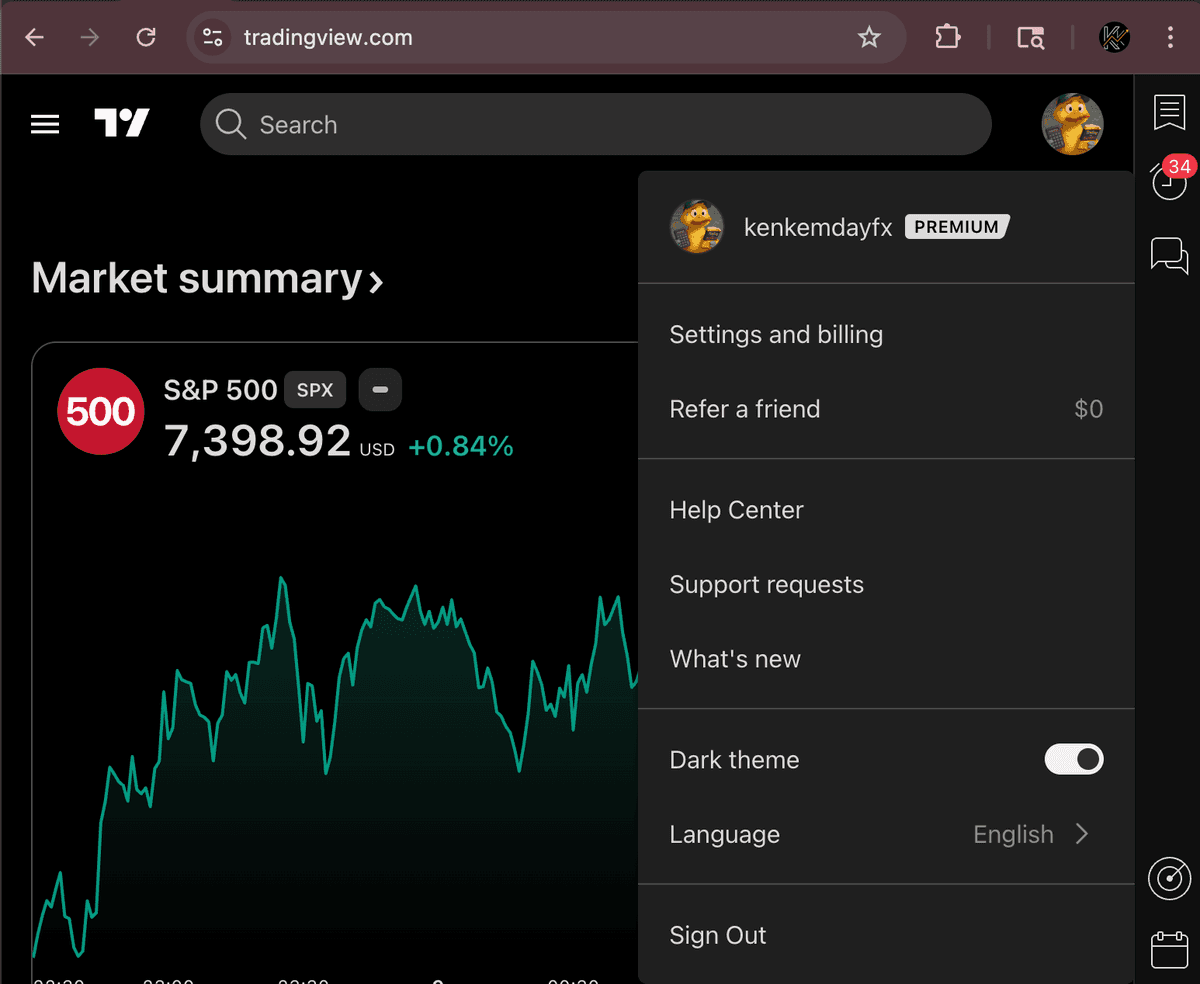
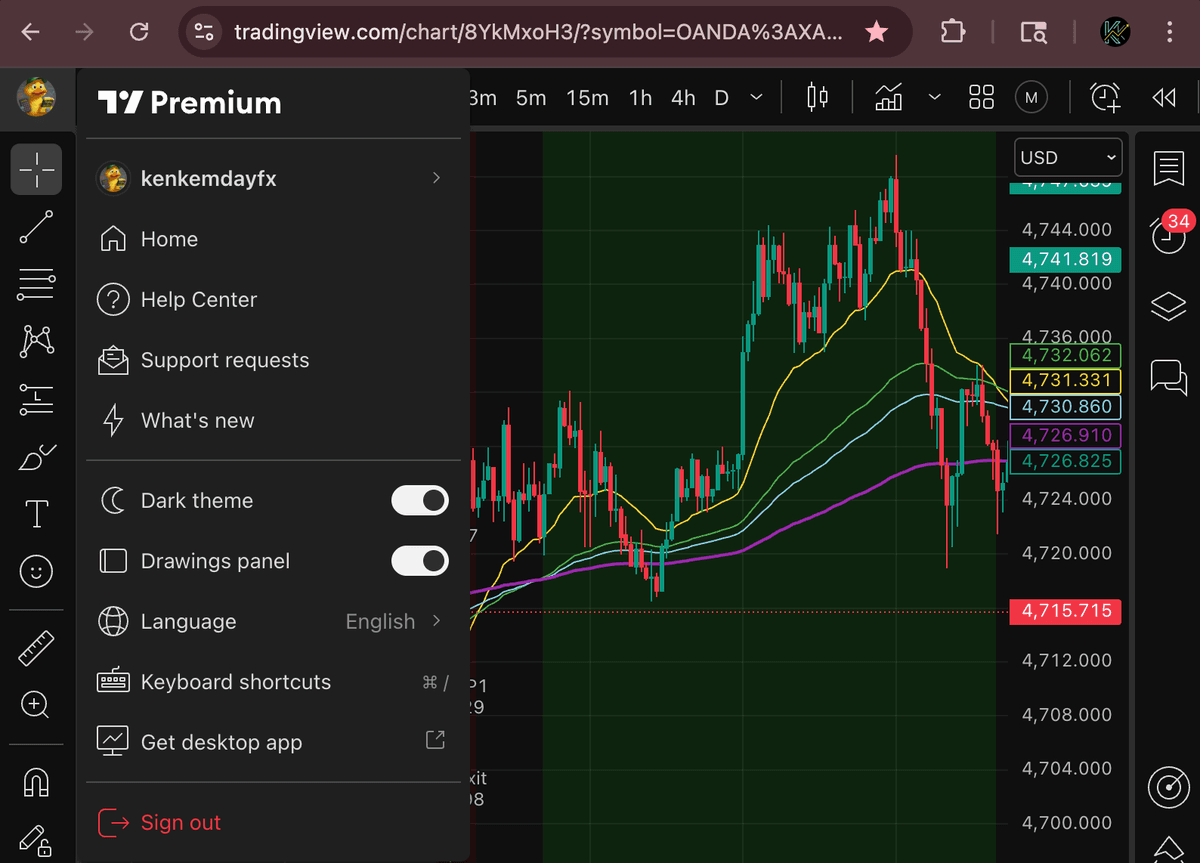
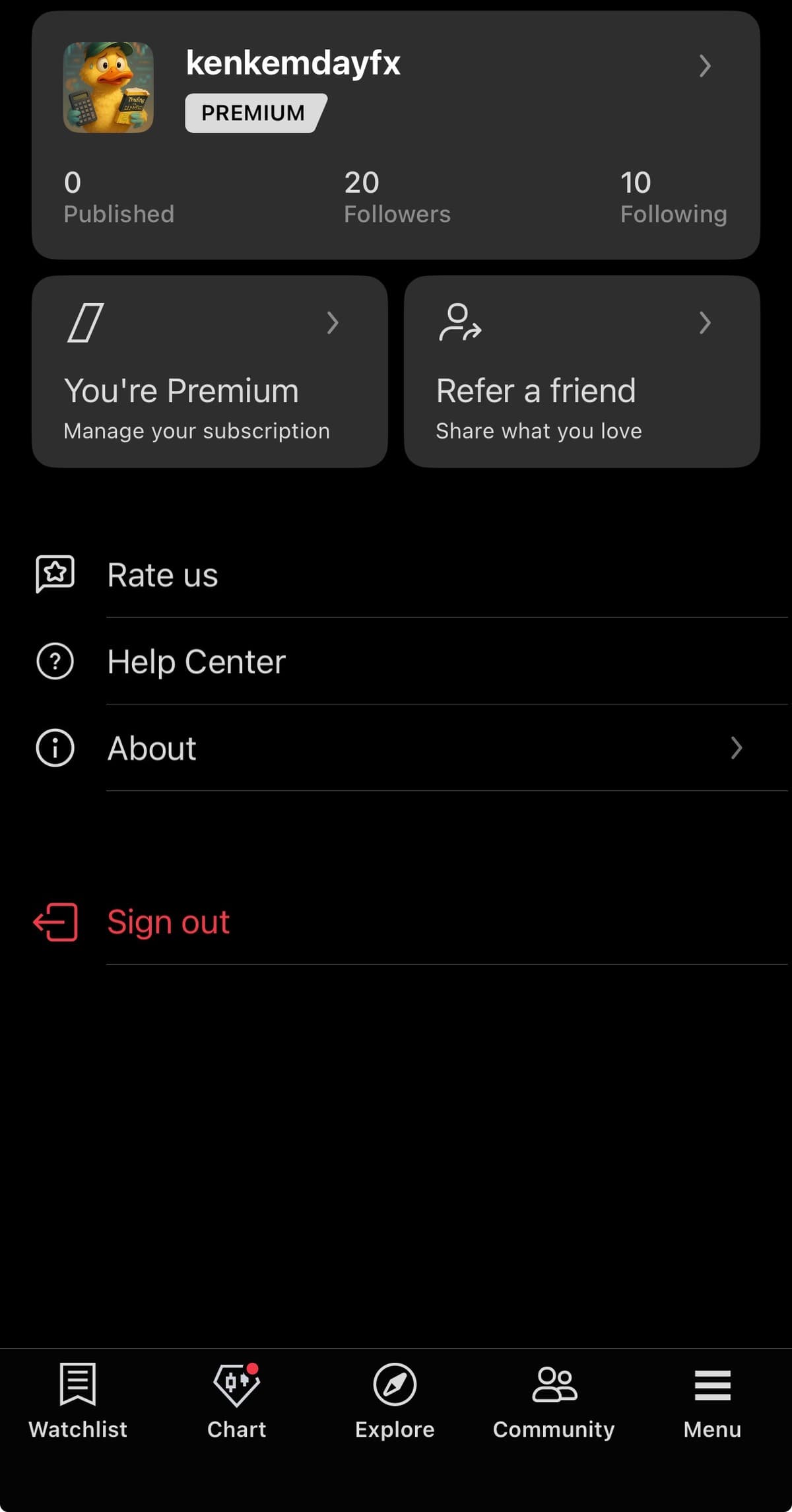
We need your exact TradingView @username (not your display name — it's case-sensitive). Here are three places you can read it off your TradingView account:
Section 1
Choose a plan, checkout via Whop
Pick a plan, pay on Whop, then log in to Whop to see your KenKem subscription. Whop handles checkout, billing, and access management.
TradingView username is required before payment
On the Whop checkout page, you'll be asked to enter your TradingView username before payment can proceed. Type it exactly as shown on TradingView — our support team uses this username to grant the invite-only indicator to that account after payment.
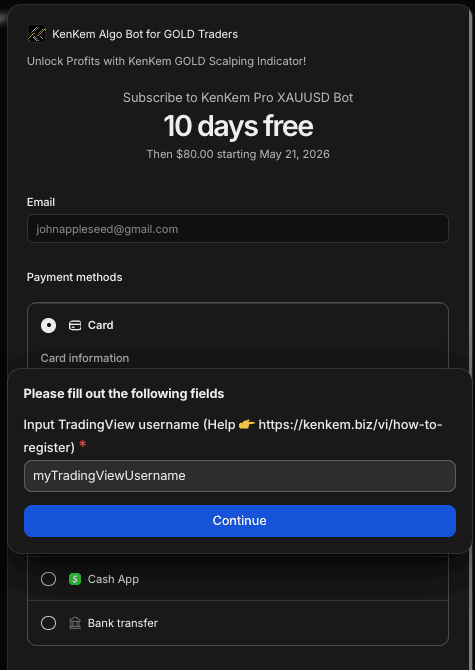
Subscribe on Whop
Pick a plan from the KenKem pricing section and complete checkout on Whop.
- Open the KenKem homepage and scroll to the Pricing section
- Click Subscribe on the plan you want — Whop checkout opens in a new tab
- If you have a promo code, paste it into the "Promo Code" field on the checkout page
- Click the "Apply" button and verify the discount (e.g., X% off for N months) actually shows on your order summary before proceeding
- Read the Terms of Service and Privacy Policy, then complete the payment
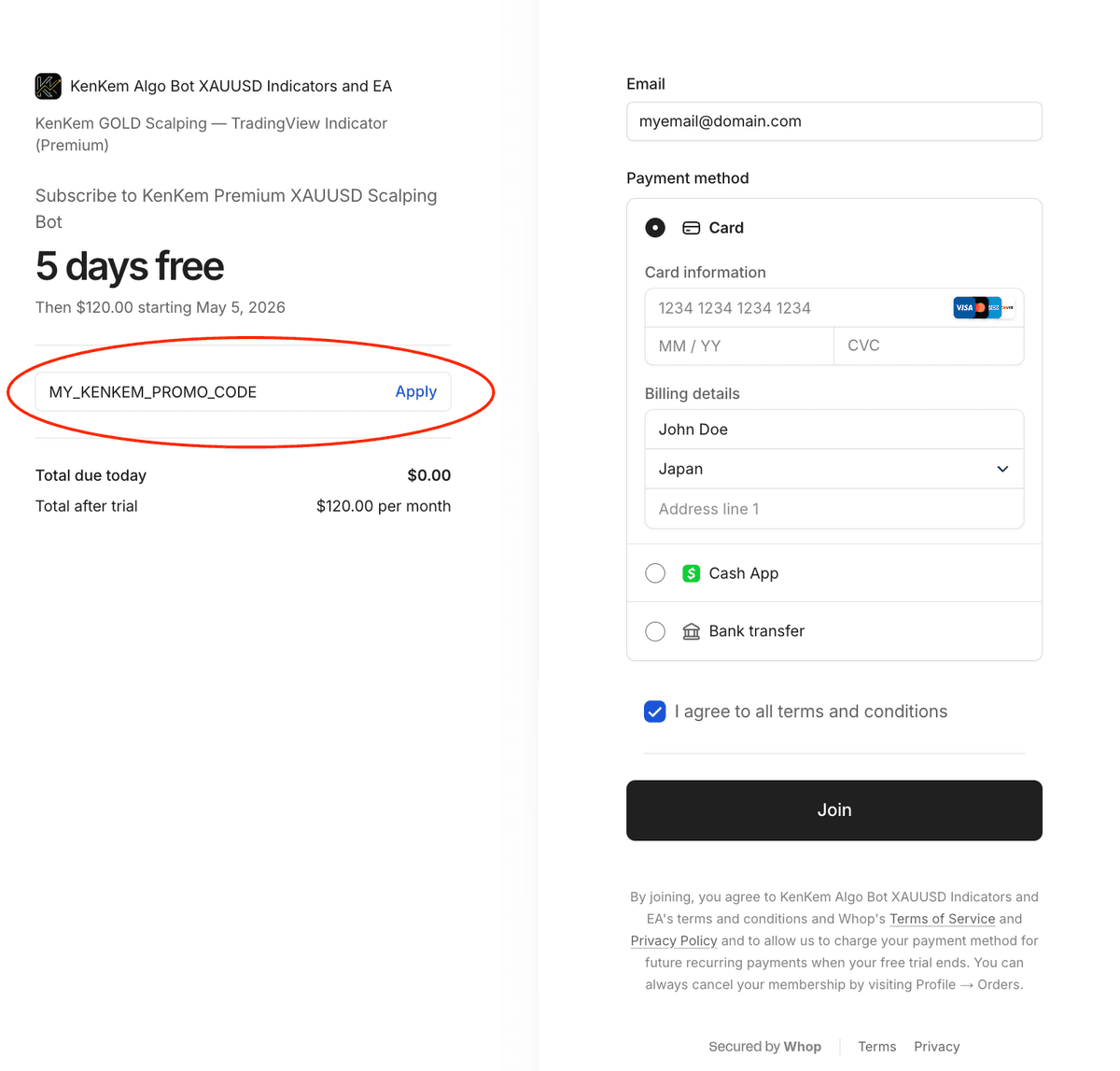
Check email and log in to Whop
After payment, you will receive a confirmation email.
- If you don't have a Whop account: create one (usually with Gmail/Email)
- If you already have Whop: log in
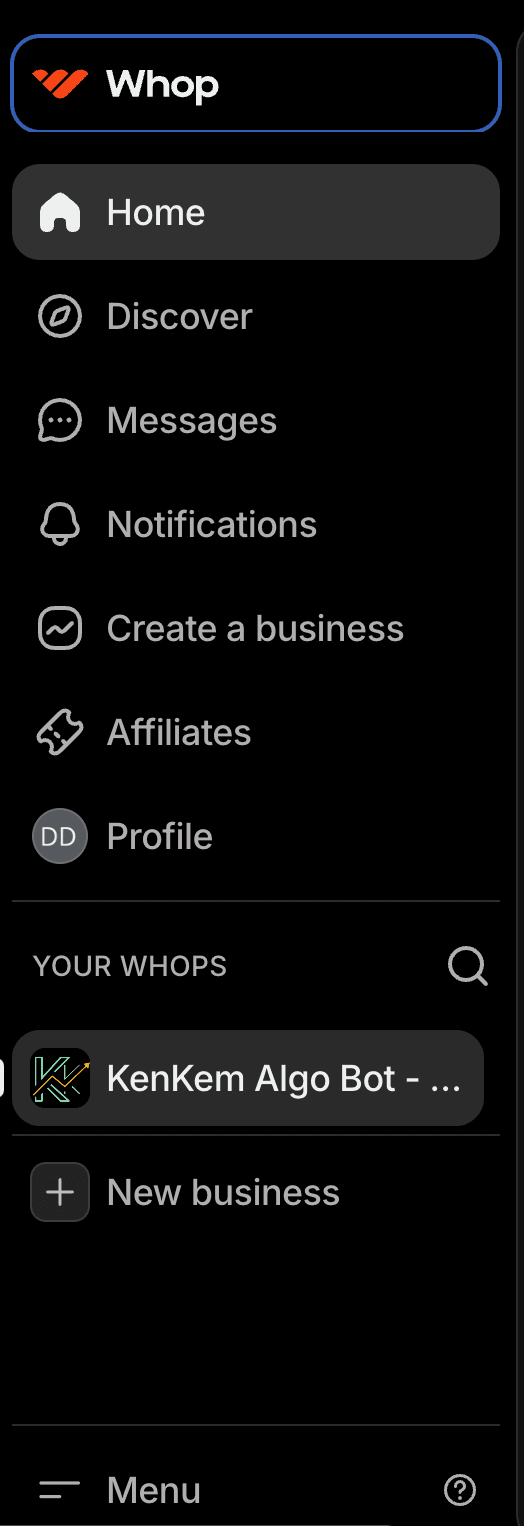
- After logging in, you'll see KenKem in "My Purchases / My Memberships"
- Click on it to see the Discord connection page
Section 2
Add the indicator to your TradingView chart
Please give our support team some time to grant you access to our Trading View Indicator - we normally inform you via Whop Support Chat. When ready, open the KenKem invite-only indicator on TradingView and load it onto your XAUUSD chart.
TradingView access — handled by our support team
The TradingView app on Whop is currently having issues granting access automatically. After your payment goes through, our support team checks your payment status, grants TradingView access manually, and notifies you via Whop, Discord, or email within a few hours (it can take longer outside business hours).
Add the indicator to your chart
Open TradingView and load the indicator on your chart. There are two easy ways to do it.
- Method A — From the indicator's page: open the KenKem indicator on TradingView (the link is in your Whop access email) and click "Add to Favorite Indicators". From any chart, you can then drop it in via "Indicators" → "Favorites".
- Method B — From any chart: click the "Indicators" button in the top toolbar, switch to the "Invite-only scripts" tab on the left, then click KenKem to add it to your chart
- Once added, the indicator prints Entry / SL / TP1 / TP2 and a reference lot size directly on your chart — your judgment decides whether to act on any setup
- For XAUUSD scalping, the timeframe and inputs are described in the Full TradingView Indicator Guide
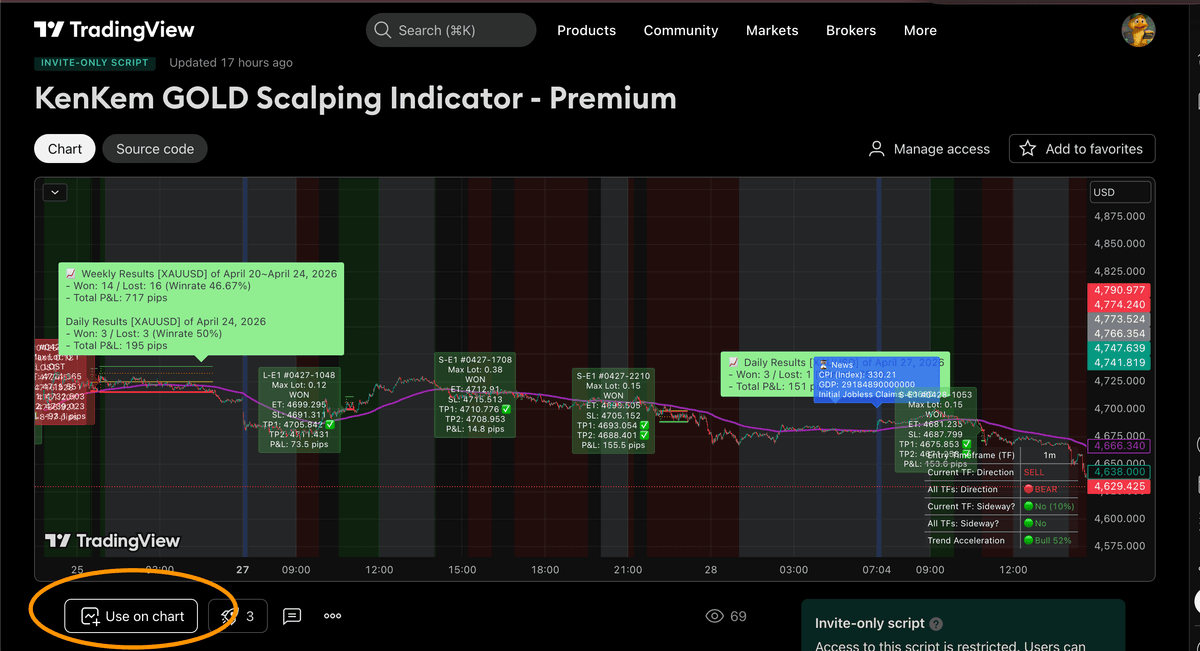
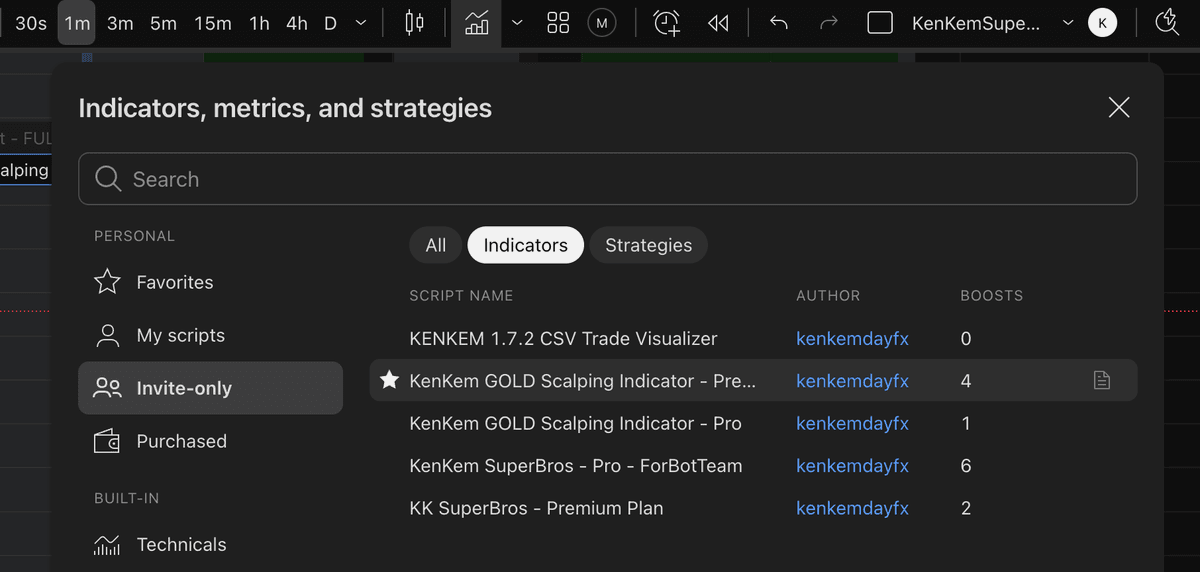
Or go straight to the indicator's page:
Want a deeper walkthrough?
For inputs, alerts, chart-reading tips, and example setups, head to the Full TradingView Indicator Guide.
Section 3
Connect to Discord from Whop
Important Note
The email used to purchase on Whop and your Discord email don't need to be the same. The most important thing is that you connect the correct Discord account in Whop.
Connect Discord with Whop
Click the "Add Account" button to log in to Discord on your browser or via the app.
- After logging in, you'll see the "Whop Bot" screen
- Scroll down and click the "Authorize" button
- You can connect multiple Discord accounts but only select one
- Click "Claim Access" for that account to complete
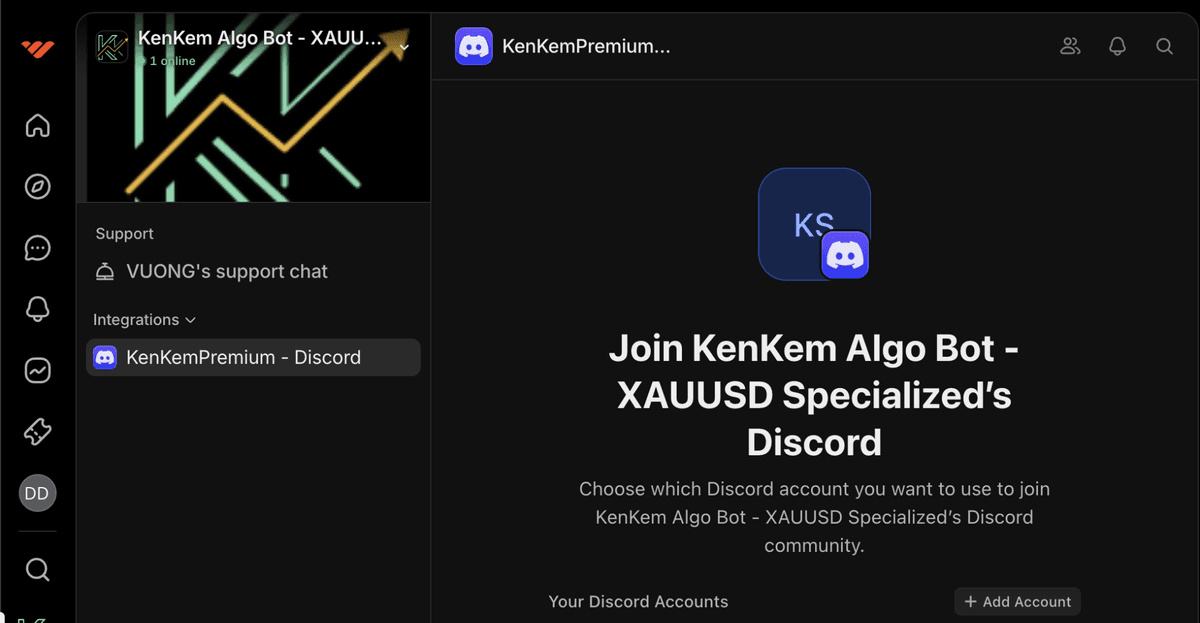
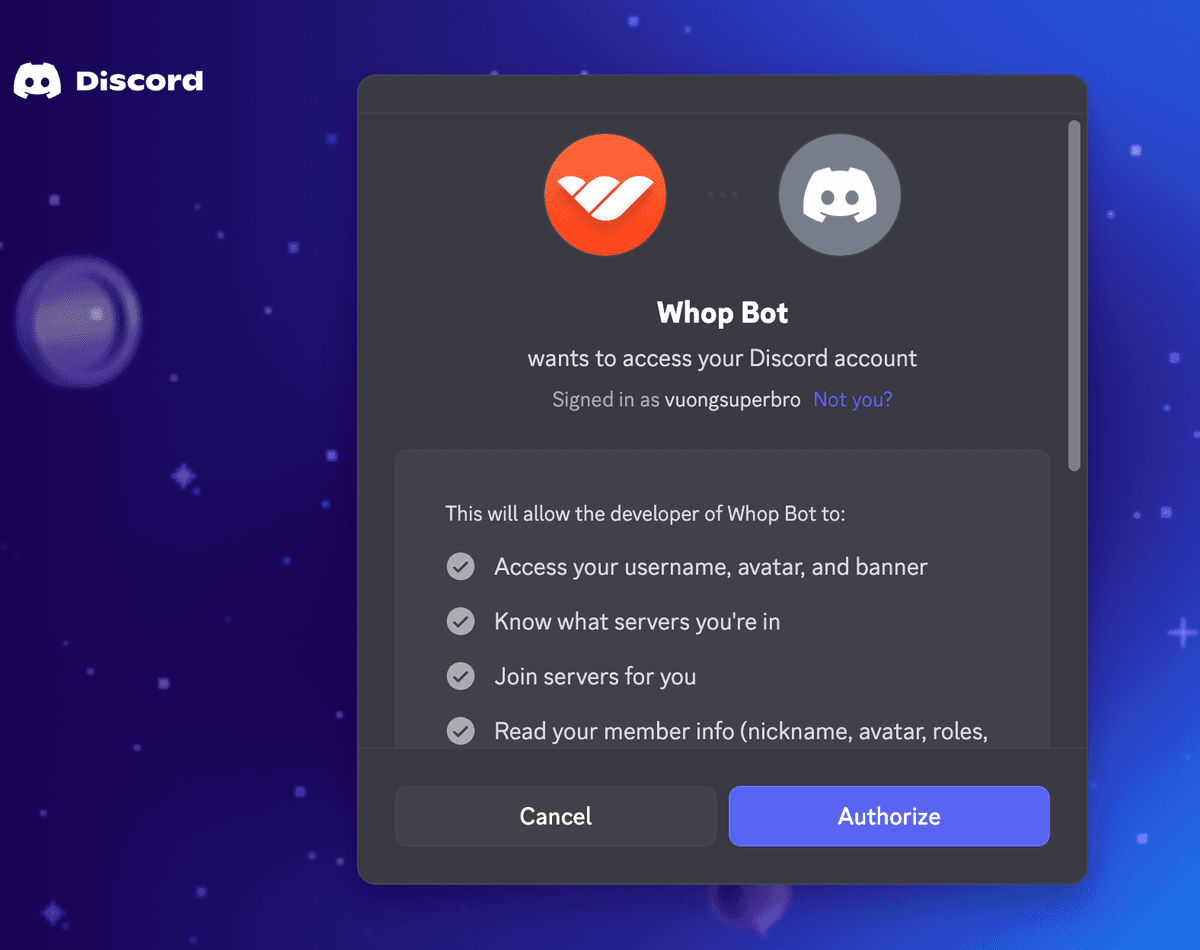
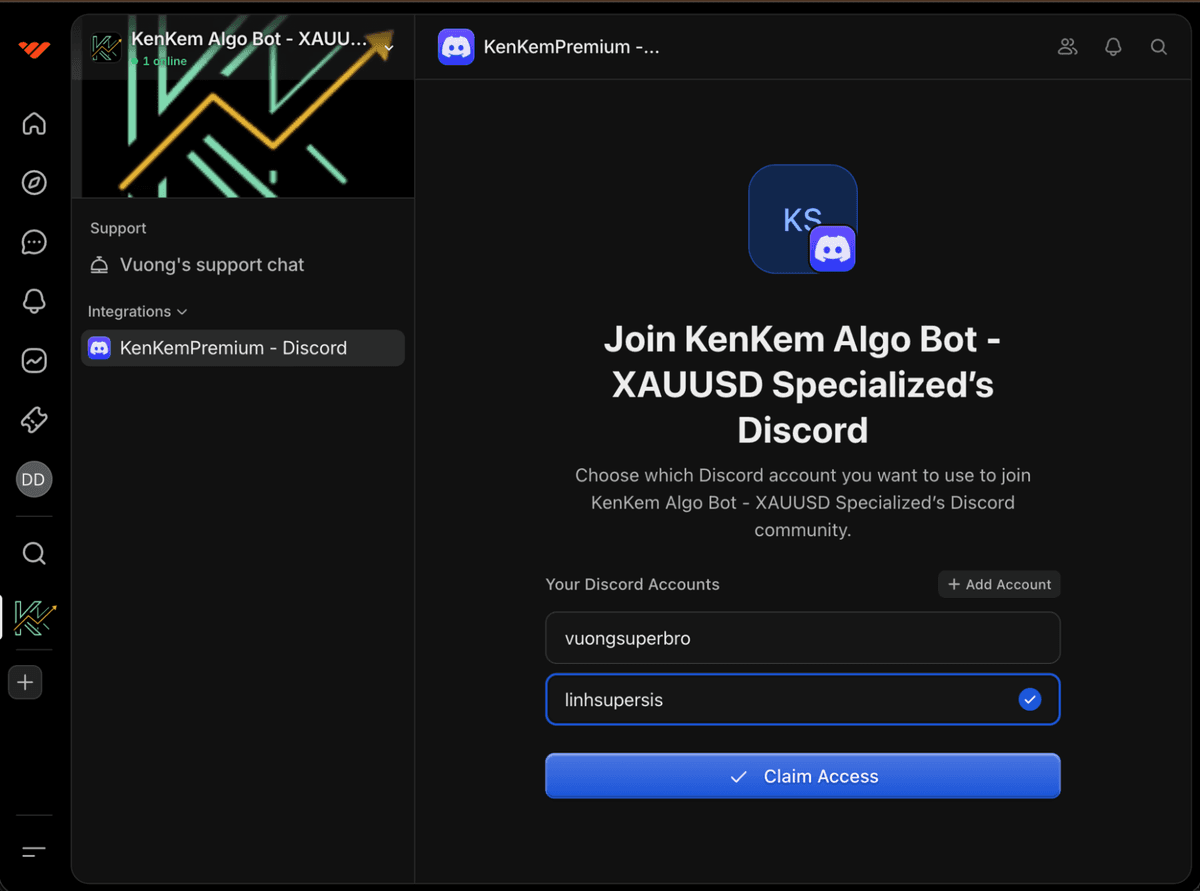
Complete!
After completing the steps above, you will be automatically added to the KenKem Discord server and have full access to the product distribution channels.
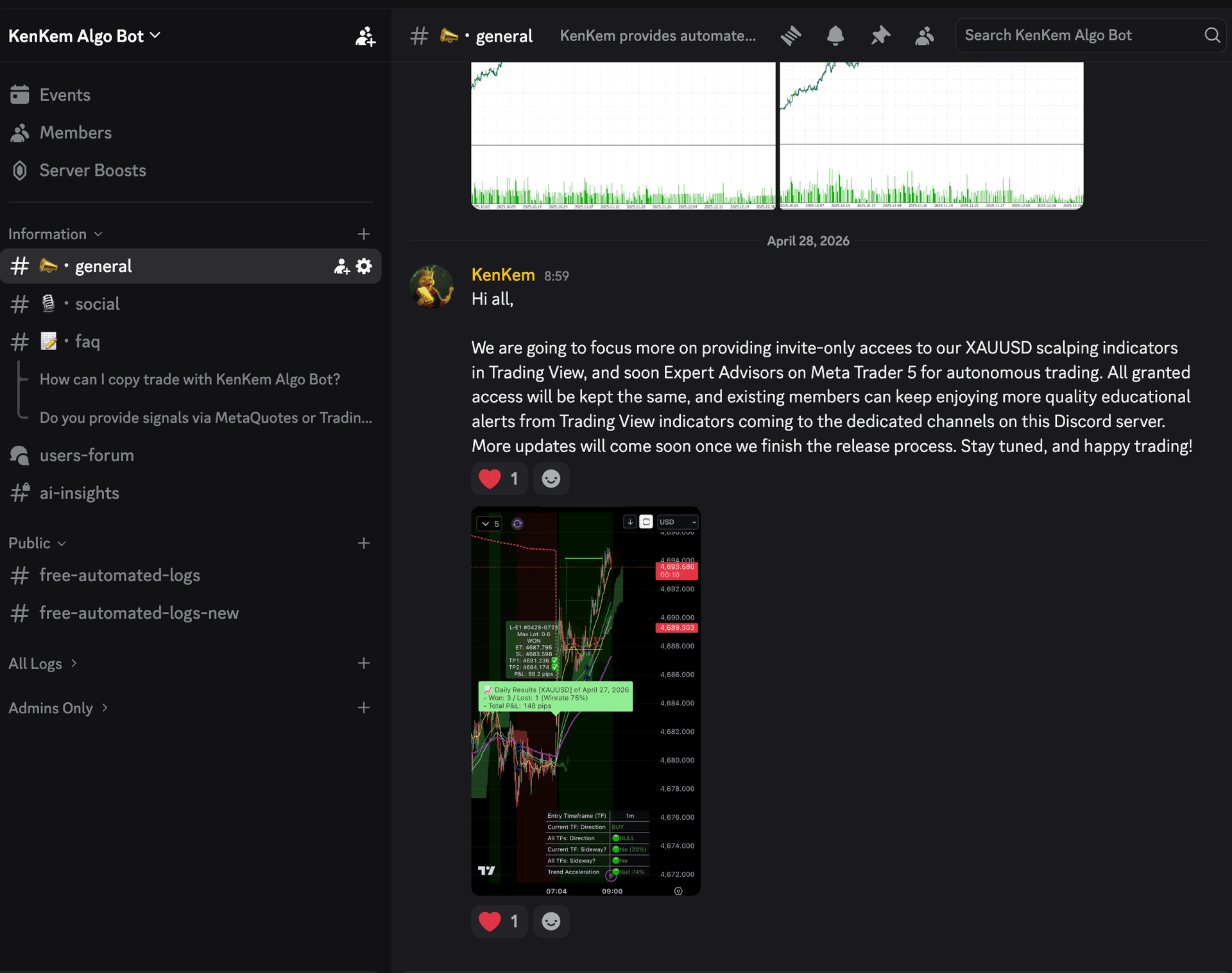
Not subscribed yet? Join the public Discord
The public Discord is a free community space for general technical discussion. It is not the paid-members channel and is not a signal service.
The public Discord is a free community space for general technical discussion. Paid subscribers additionally get a free members-only channel that mirrors delayed, partially masked indicator outputs. For reference, not real-time. Neither channel is a signal service or financial advice.